The Canvas Finish Line: Grading Tips for the End of Term

Tips for Using the Canvas Gradebook
Viewing and Entering Grades in Canvas

You can simply type them directly into the Grades spreadsheet. As you hit enter, you can work your way down the column. If you are entering Grades in the Gradebook, take advantage of the settings under “View,” to reduce scrolling. You can use “Arrange by” and “Filters” to flexibly reduce the number of columns you are looking at on the screen so reviewing and entering grades is easier. You can also move columns around if that makes them easier to work with.
If you prefer to leave feedback with grades, you can navigate the side tray to add grades and comments from the Gradebook spreadsheet view by clicking into a cell and clicking the right-facing arrow. This opens a right-side tray with fields for grades, comments, and status. You can use the left and right arrows under the student photo to navigate to the next student, the next assignment, or the SpeedGrader view, which will show the student’s assignment if it was submitted through Canvas. 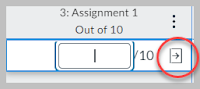
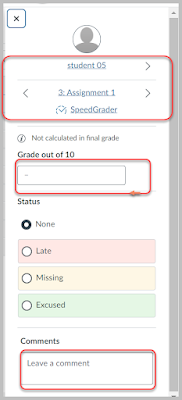
SpeedGrader lets you see the students’ work, mark up/annotate documents within Canvas, enter points, make text, video, and audio comments, use rubrics, and take advantage of the full suite of grade tools Canvas has to offer!
A few notes:
- If you use rubrics, and you want the rubric to auto enter the total, make sure you have gone to the assignment and in the rubric’s settings, you check the box to “use rubric for grading.” This will auto-fill the grade based on the rubric selections.

Like to re-use comments? Use Chrome? Try an enhancement Chrome extension to speed up grading, such as Canvas Betterizer (free) or AnnotatePRO (free through Dec 2020) in SpeedGrader. It will add enhancements to speed up grading, such as keeping a list of comments you already made so you can easily re-use them!
Students and the Gradebook
The Assignments Index Page collects all assignments that are graded. The assignments also appear in the gradebook (left to right) by default in the order they are organized on the Assignments Index Page (top to bottom). Assignment “Groups” look like modules on the Assignments Index Page, but unlike modules, they are always visible to students.
Even if the Assignments page view is hidden, each “Group” name appears as a subtotal on the student view of their grades.
“What-if” Scores
Remember: students can try out grade estimation in their view of the gradebook. If your gradebook is set up using the rules you will apply to calculating the final grade (for example, weights are applied to the categories if they will be used), this tool allows students to estimate how they need to perform on any final assignments and see how it will affect the final grade. You can remind them of this functionality and share the Canvas Student Guide on What-if Scores.Extra Credit
See the Extra Credit Canvas Guide for more details on how to use either option.
Finalizing Grades
- If any dashes appear in student grades, Canvas is not calculating that assignment into the final grade column. To ensure that all grades are included in a final grade, a number must be entered in the grade column.
- How do I use the total grade column in Canvas
- Enter same score for all cells in a Canvas grade column or for all empty cells in a column
- Excusing assignments for individual students
- See ways to modify how assignments are calculated in final grades here. Options include
- setting assignments as "ungraded." Each major assignment type can be set as an ungraded assignment within its settings. Ungraded assignments do not appear in Grades.
- Assignments have a checkbox option under the details that says “not calculated in final grade." This leaves the column visible to students in the Grades page but does not add the score into the overall grade calculation for students.
Grades can be dropped or removed from final grade calculation in a few ways:
Troubleshooting Grades
Here are a few pointers based on questions we frequently hear related to Grades in Canvas:- If you weight grades, make sure weights are on each Assignment Group and the total adds up to 100%. Categories with no weight will be automatically set to 0% and not count in the final grade.
- Can't remember if you changed something in grades (or think you made an error and wish to backtrack? Go to Gradebook History
- Want to review more information about student participation and grades in the class? Use New Analytics
Comments
Post a Comment